
User Groups
User Groups may be used to restrict what Agents are able to see and do in an Evo.NET Company.
Create a new User Group by clicking the Add User Group button from the User Group List. Enter a name for the User Group you have created and configure the User Group in the tabs below.
Members
Individual Agents may be added to the User Group or you can tick the option All Agents are members of this group. If the "All Agents..." option is selected, all existing Agents and even new Agents added later will automatically belong to this group.
Permissions
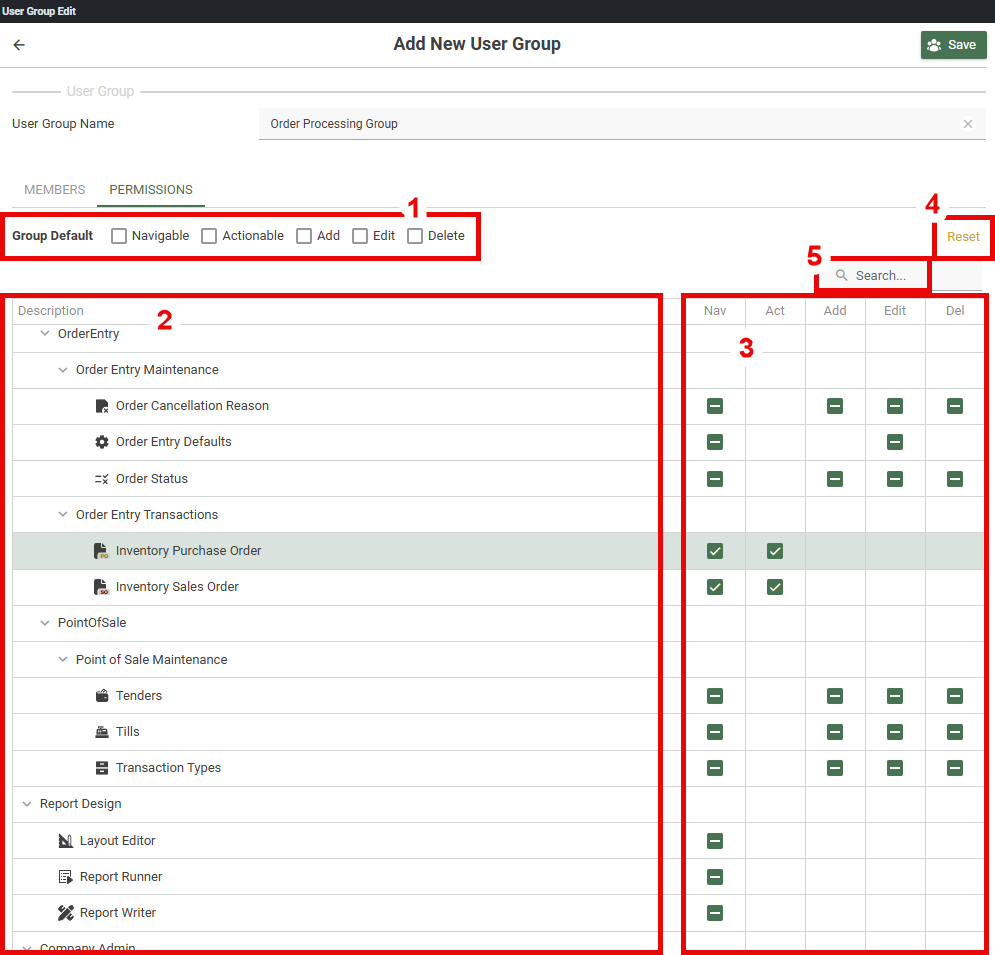
Evo.NET maintains a tree-like hierarchical navigation system which is displayed to an Agent when a Company is opened and which they may navigate to access functionality. What is visible to an Agent can be controlled by setting the Navigable option for a node. If a node is navigable (visible), there may be further granular permissions which can be applied, and those will have an Actionable option which may be set. Most maintenance forms will also allow you set set Add, Edit and Delete permissions on that form so that you can control exactly what actions an Agent is able to perform.
INFO
The checkboxes for each node are tri-state checkboxes ( ). Clicking on one repeatedly will cycle through the options Indeterminate (assume default), Explicitly Allowed and Explicitly Disallowed.
1. Group Default
These options are where the default for each item can be specified if a permission in the tree is not explicitly set (indeterminate). This saves you checking/unchecking every option and also handles the situation where future versions of Evo.NET add new nodes (new nodes will assume the default).
2. Navigation Tree
This column shows items in a tree-like structure that corresponds to the navigation system's layout where specific permissions can be applied. This makes it easy to locate and visualize individual nodes and functionality that you would like to apply specific permissions to.
3. Permission Toggle
To set an explicit permission on a node, check or uncheck the checkbox in the row and column denoting the permission you wish to set, or leave it in the indeterminate state to assume the Group Default.
PERMISSION MERGING
An Agent may belong to more than one User Group. In that case, the permissions set for each group will be merged and conflicts resolved according to the following rules:
- Not explicitly set for any group -> any Group Default allow will take precedence
- Explicitly set for any group -> will take precedence (allow or disallow) over any Group Default
- Explicitly allow for one group and explicitly disallow for another -> Explicitly allow will take precedence
4. Reset Permissions
Click the Reset button to return all checkboxes to the indeterminate state and the Group Defaults to disallow all.
5. Search (filter)
Type any text here to filter the tree by that text.
Suggested Permissions Strategy
- Create an "Administrators" User Group
- Set all Group Defaults to allow (checked) and leave all permissions indeterminate
- You can then easily add Agents that you wish to have full access to everything to this User Group
- Create a "Users" User Group
- Check Members: All Agents are members of this group
- Leave all Group Defaults disallowed (unchecked) and leave all permissions indeterminate
- New Agents will by default not have access to view or do anything
- If new versions of Evo.NET include new functionality, Agents will not have access to the new nodes by default
- Create User Groups for each sub-set of functions you wish them to perform
- For example, you may want to create a "Purchasers" User Group that can acccess Suppliers and Purchase Orders, or a "Sales" User Group that can access Customers and Sales Orders.
- Agents that need to perform multiple roles can be added to all applicable User Groups