
Report Layout Editor
Selecting the Report Layout Editor module will show a list of Report Categories corresponding to all the available standard reports in Evo.NET.
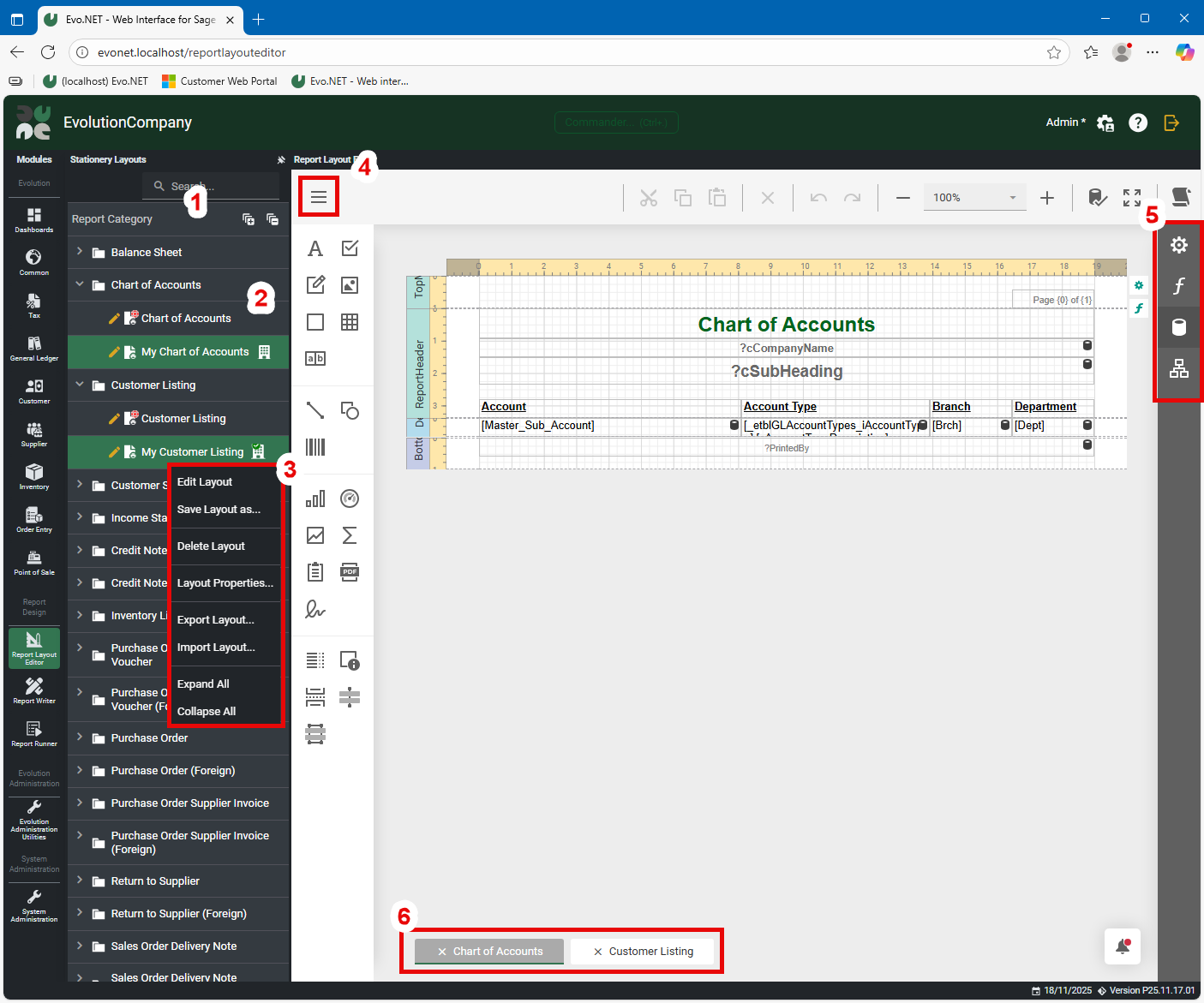
1. Report Categories
Each standard report in Evo.NET is in its own Report Category. Layouts designed for that report will all belong to the same Report Category. You can filter the list by typing in the Search box.
2. Report Layout
Expand a Report Category by clicking on it and it will show all Layouts for that Category. There may be symbols next to the Layout name which indicate aspects of that Layout.
 A red globe overlaying the Layout icon indicates that it is a System Layout which may not be edited. If you try to edit this Layout, you will be prompted to "Save as...".
 A Company symbol to the right indicates that this Layout will be available for the current Company.
 A Company symbol with a green checkmark indicates that this is the default Layout for the current Company.
Click the edit (pencil) button next to the Layout name or double-click the Layout name to open the Layout in the designer.
3. Context Menu
Right click a Report Category or Report Layout to open a context menu with more options.
4. Hamburger Menu
When a Layout is being edited, click this button to open up a menu drawer with options relating to the current Layout.
5. Designer Tool Drawers
Click the buttons in this list to open drawers containing sets of functionality you can apply to the Layout.
6. Open Layout Tabs
Multiple Layouts can be opened and designed simultaneously. Switch between them by clicking on the tabs at the bottom.
Designing and Saving
With the Layout open in the designer, you can click on elements of the Layout and adjust their properties using the controls available in the Tool Drawers.
Please refer to Web Report Designer - End User Documentation for more details particular to report design. Note that not all features described in this documentation will be available as they may not be suitable in this context.
IMPORTANT
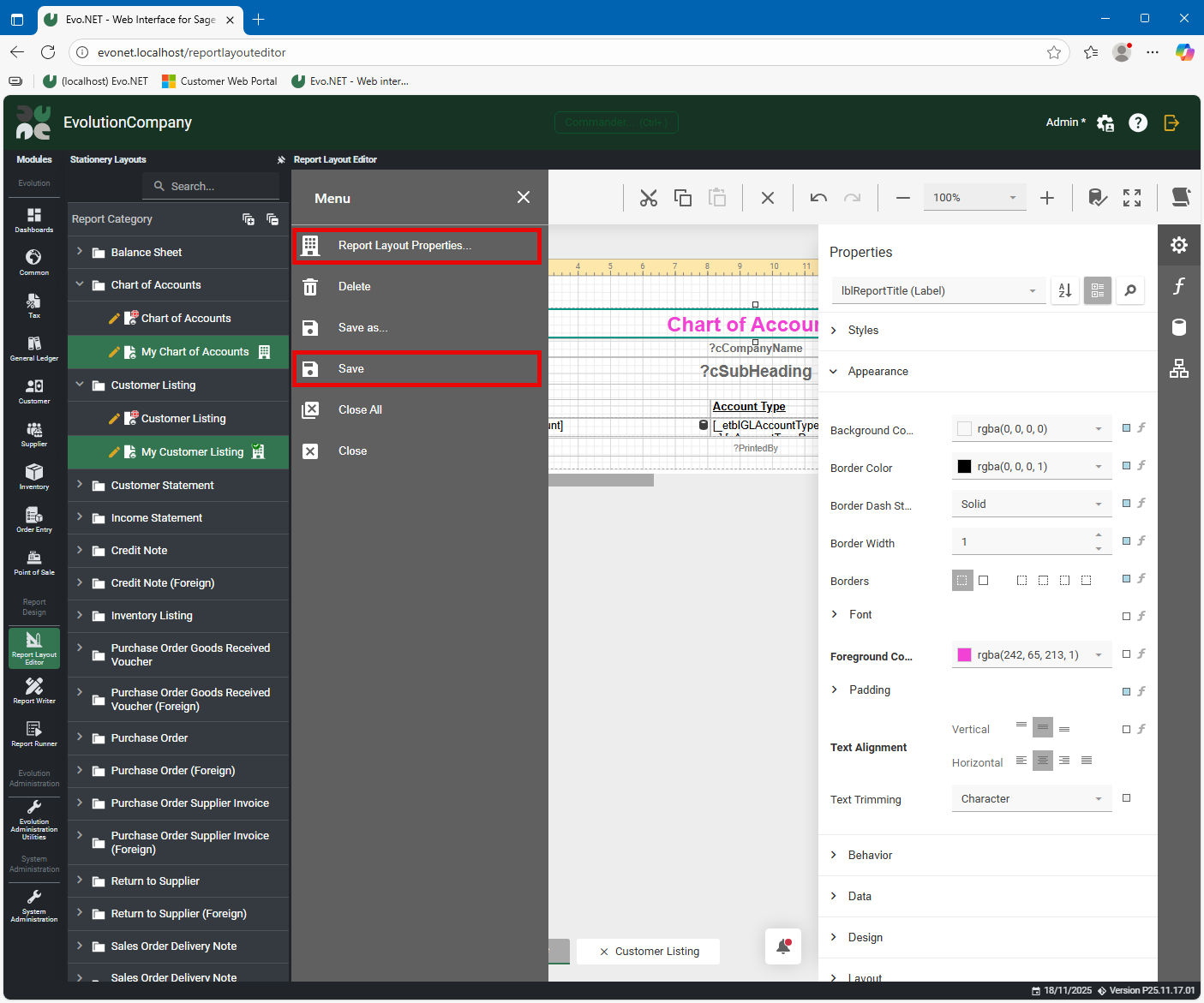
After you have made changes to a Layout, you must open the hamburger menu and click Save in order to persist your changes.
Report Layout Properties
If you create a copy of a Report Layout, or edit the properties from the hamburger menu, the following options will be available.
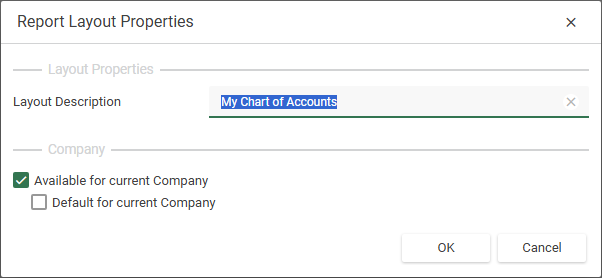
Layout Description: A description you can use to identify your Layout.
Available for current Company: The Layout will be available for selection in this Evolution Company when the associated report is printed.
Default for current Company: The Layout will be automatically selected to be used when the associated report is printed.
Report Layout Selection
If a Report that has more than one Layout for its Report Category, a selection box will be available listing the available Layouts.
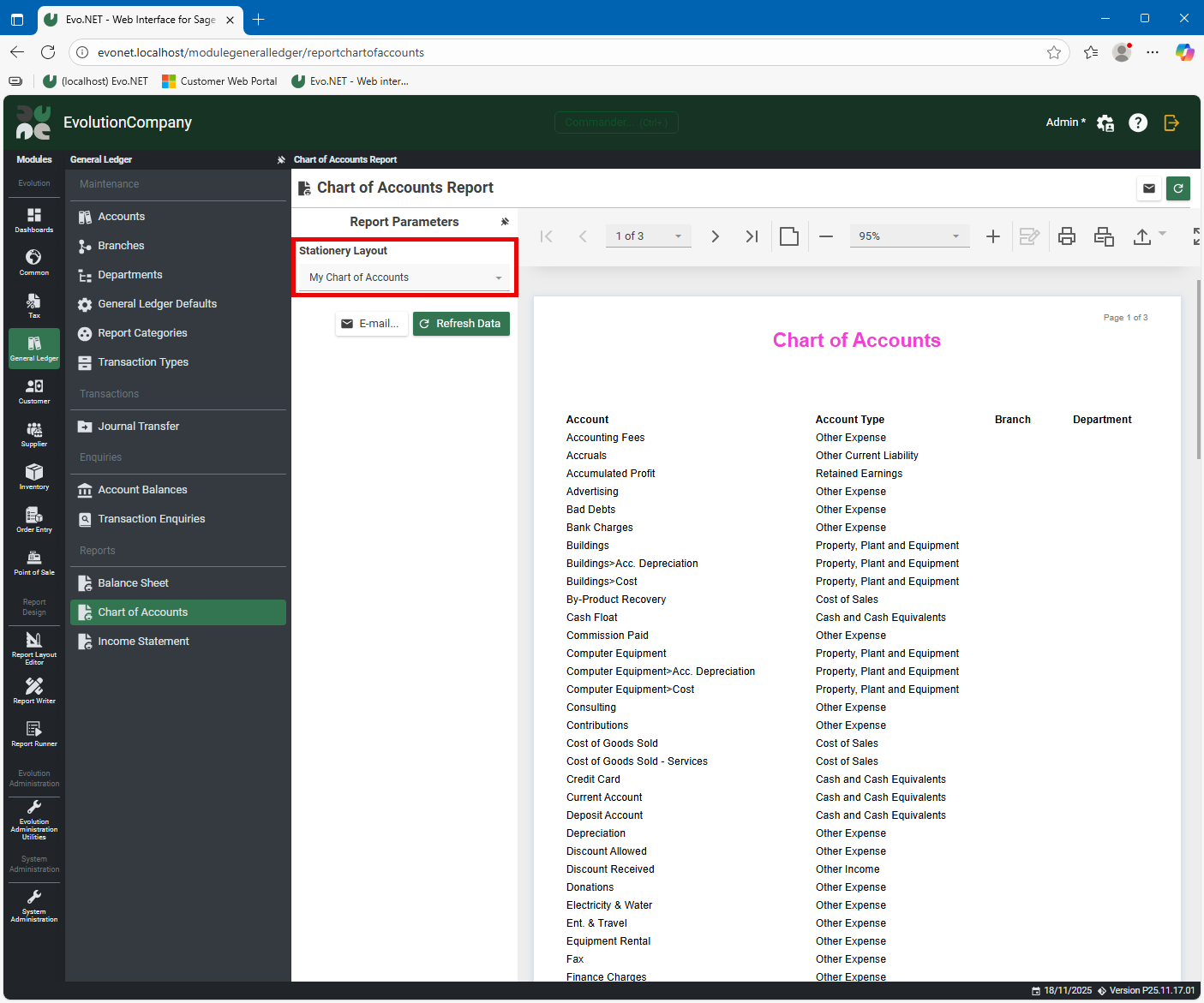
If you have set a Layout as the Default for current Company, it will be automatically selected.
If you change the Stationery Layout selection, click Refresh Data to re-render the Report using the selected Layout.