Troubleshooting Installation Issues
Troubleshooting API Startup
Check Prequisites
You can follow these steps to check that the required prerequisites have been installed correctly.
API Log Files
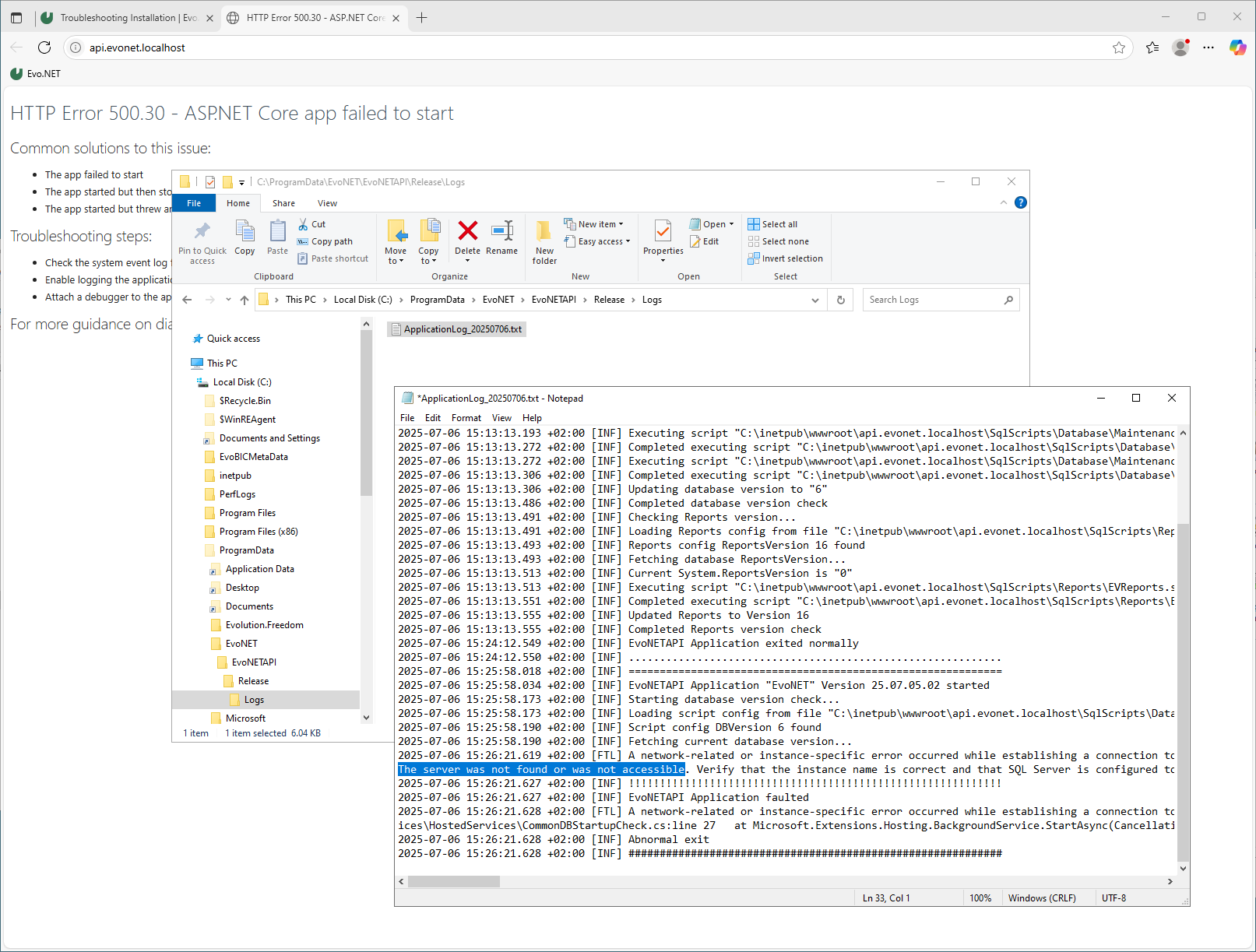
If you get an error message, there is an application log file that is created in C:\ProgramData\EvoNET\EvoNETAPI\Release\Logs which may provide a clue as to the reason, such as unable to connect to the database using the ConnectionString provided.
Run API Executable Manually
If the web site was unable to start, the application may not have got far enough to create a log file. You can execute the API manually and see if it emits any information to the console.
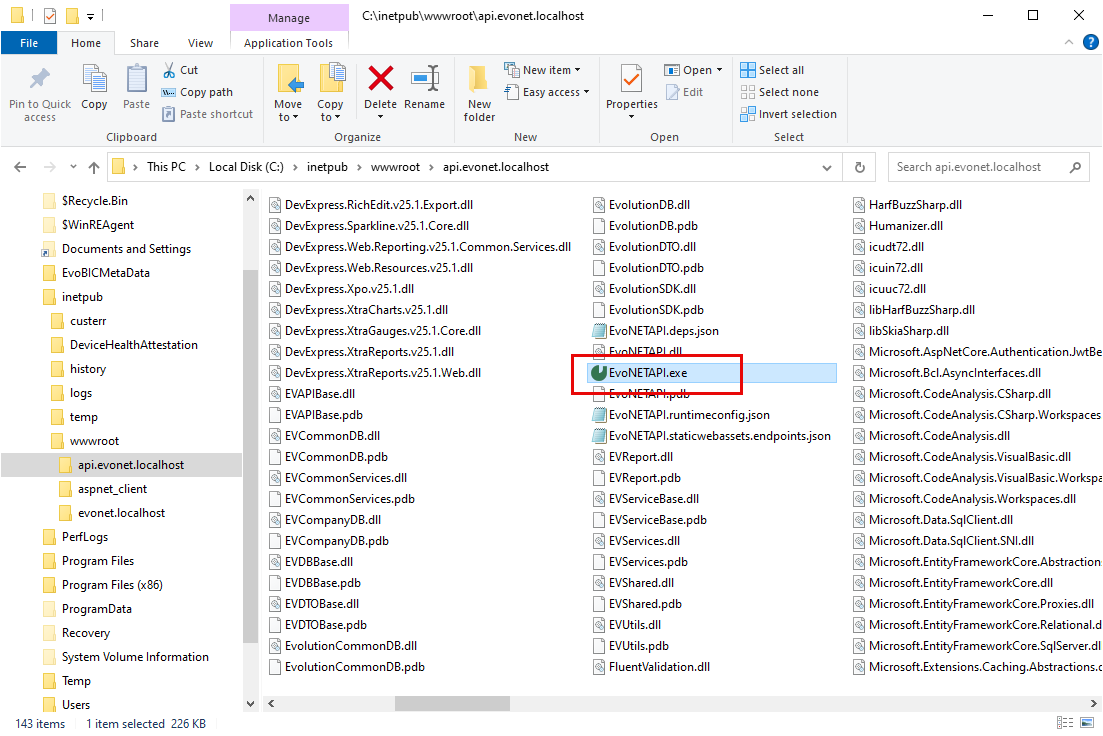
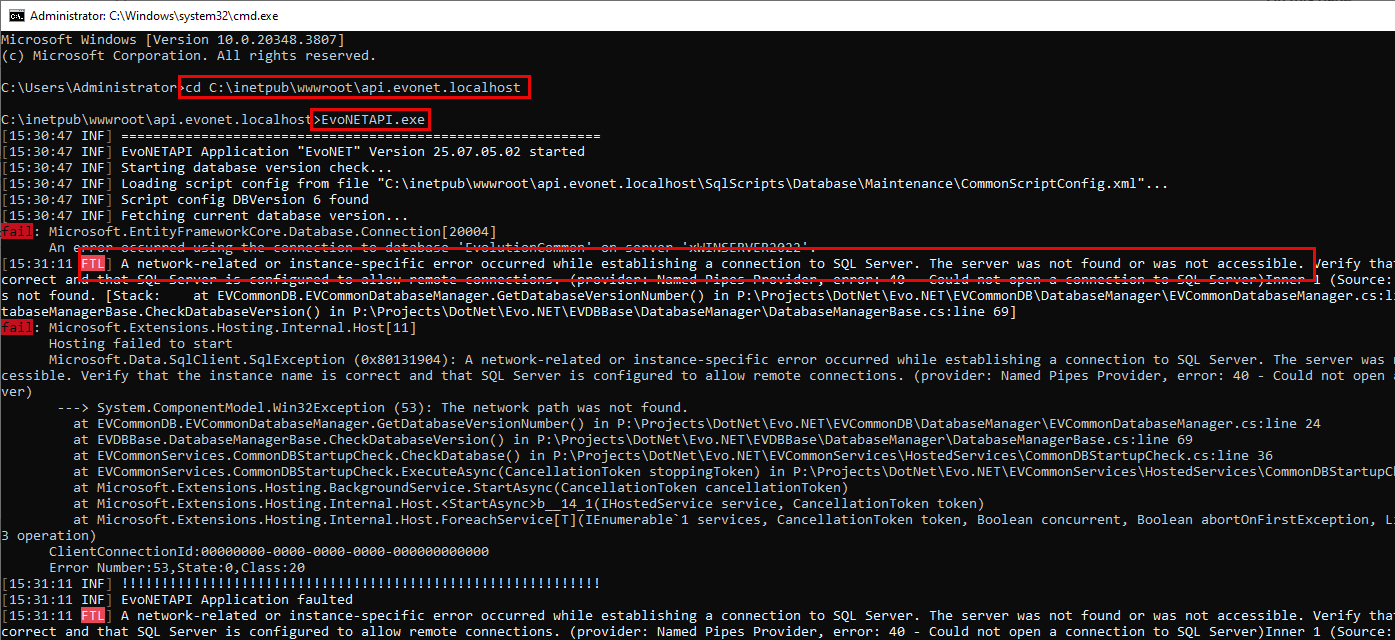
Launch cmd.exe (so that it does not close automatically) and change directory to your API web site folder. Run EvoNETAPI.exe.
Event Viewer
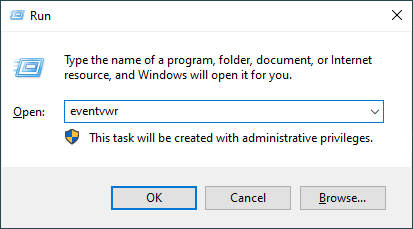
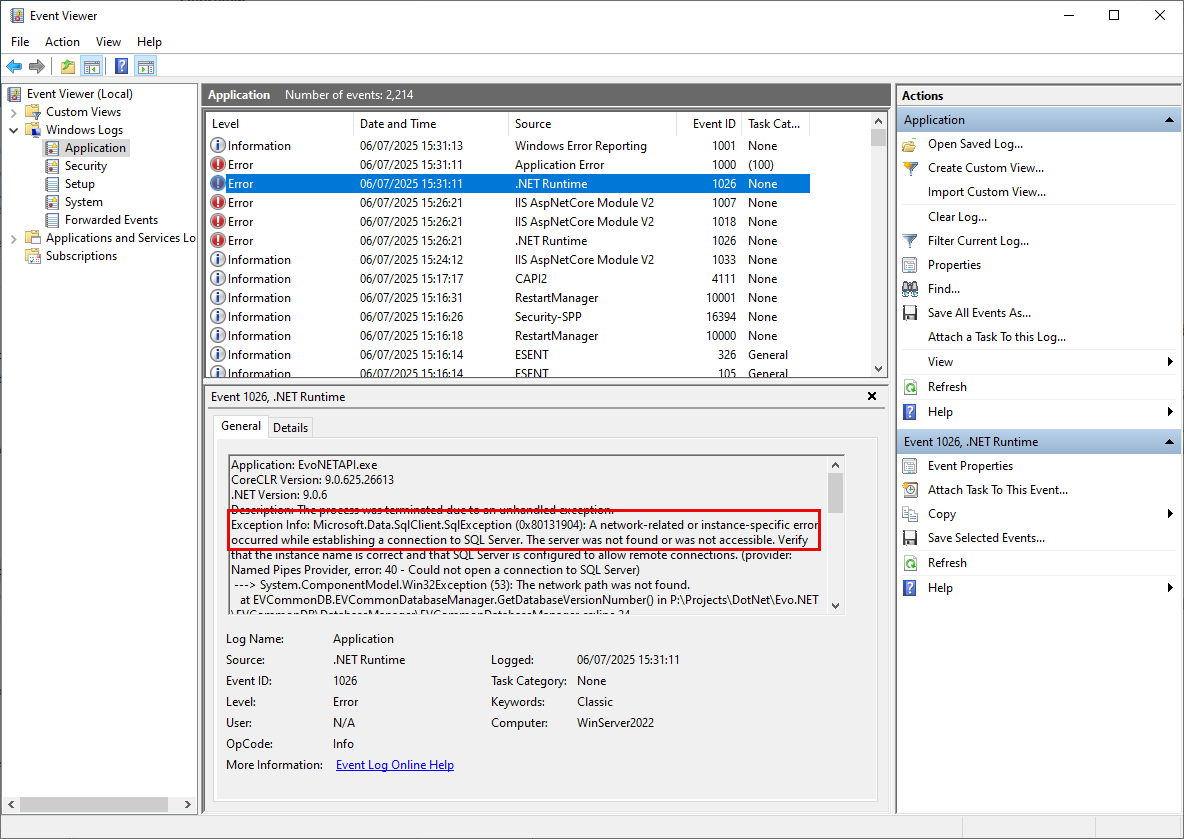
Unhandled exceptions may have been logged to the Windows Event Viewer. Run eventvwr or search your start menu for Event Viewer.
Navigate to Windows Logs\Application and see if there were any recent errors recorded there.
Troubleshooting UI Startup
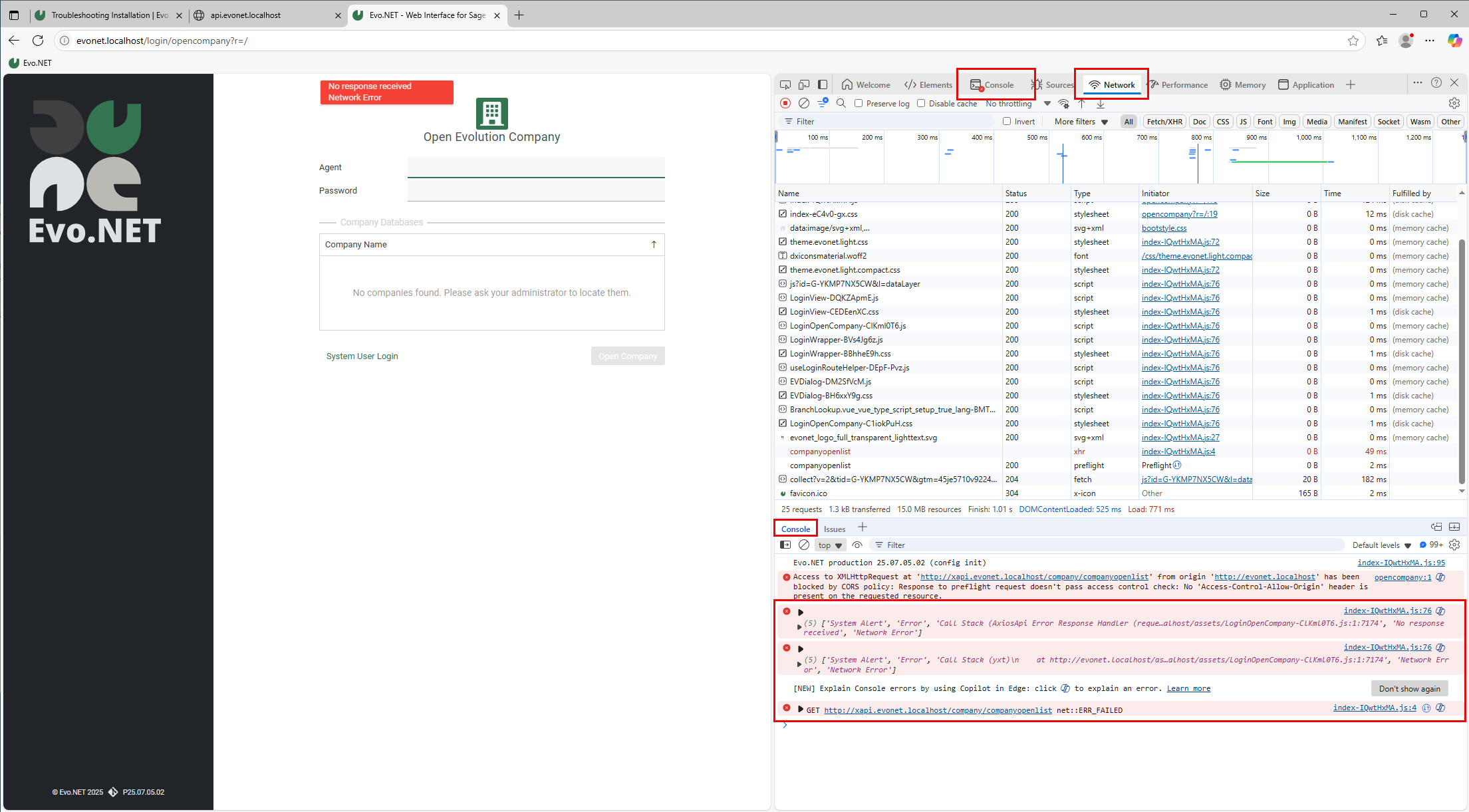
If you get an error message, press F12 to open your browser's Developer Tools, refresh the page (F5) and check the Console and Network tabs for error messages which may help diagnose the problem.